If you have been filling in a PSG application on the Business Grants Portal (BGP) and hit a wall at the final step — the Submit button is greyed out, or you cannot accept the Letter of Offer — the reason is almost always your BGP role.
A BGP Preparer can create and fill in an application, but only a BGP Acceptor can submit it and accept the grant offer on behalf of the company.
The good news: this is a two-minute fix in Corppass. The catch is that you cannot change your own role. Your company's Corppass Admin has to reassign it for you.
Who needs to do this? Only a Corppass Admin (or a user with admin rights) can assign or change e-Service roles. If you are not the Admin, forward this guide to whoever manages Corppass in your company — usually the business owner, a director, or someone in HR or finance.
What each BGP role can do
| Role | What they can do |
|---|---|
| BGP Viewer | View applications and claims only. Cannot edit or submit anything. |
| BGP Preparer | Create and fill in grant applications and claims, save drafts, upload documents. Cannot submit. |
| BGP Acceptor | Everything a Preparer can do, plus submit applications, accept the Letter of Offer, and submit claims. |
For most SMEs applying for PSG, the simplest setup is to give the person handling the application BGP Acceptor access, so one person can prepare and submit without passing the file around.
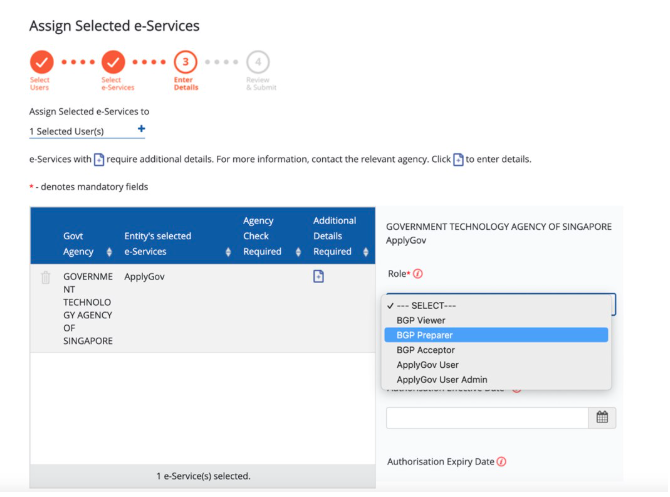
The same dropdown also offers ApplyGov User and ApplyGov User Admin. Those are not BGP roles — leave them alone and pick one of the three BGP options above.
Before you start
You will need:
- A Singpass login for the Corppass Admin
- Your company's UEN
- The Corppass ID or name of the user whose role you want to change
Corppass does not have a button labelled "change role". You change someone's role by reassigning the BGP e-Service to them with the role you want — the new role replaces the old one. Follow the steps below.
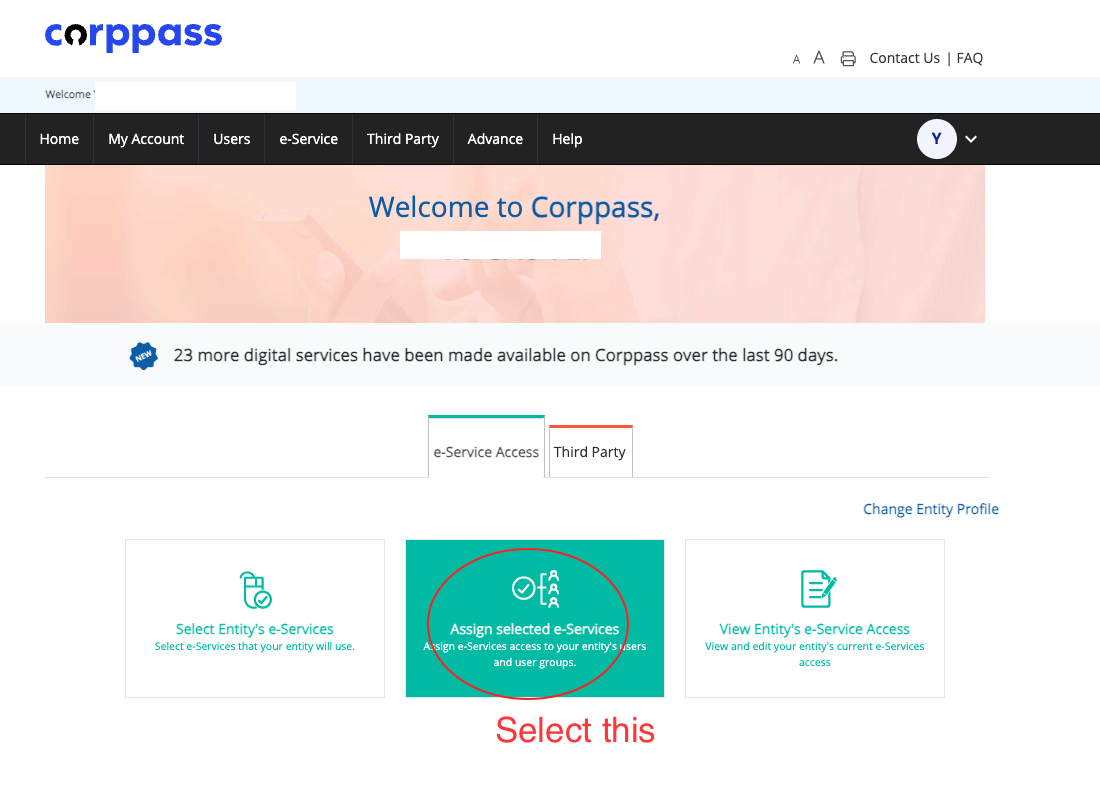
You will also see a "View Entity's e-Service Access" tile on the same screen. That is the place to check what a user currently holds, and it is worth a quick look before and after you make the change.
Step-by-step: changing a user's BGP role in Corppass
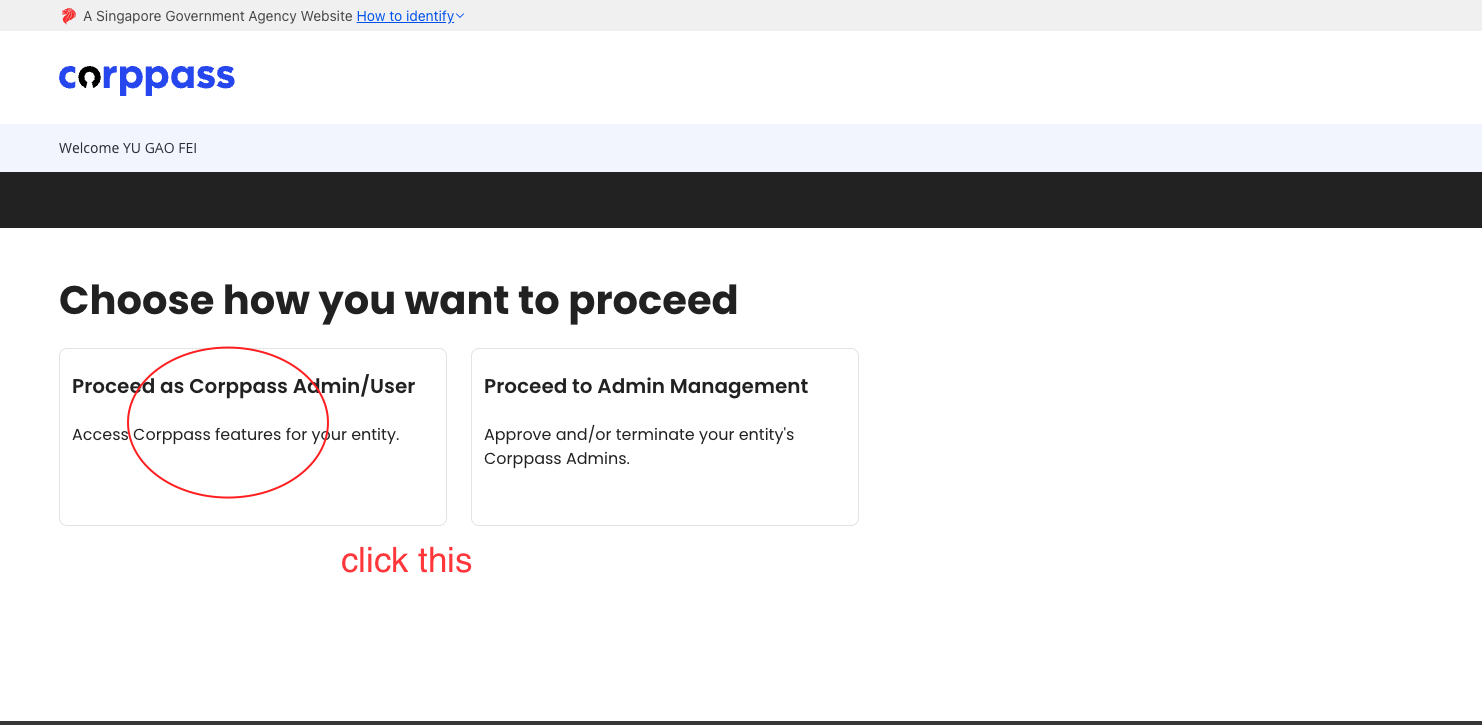
Step 1: Go to https://www.corppass.gov.sg/ and log in with Singpass. Select "Proceed as Corppass Admin/User".
Step 2: Select "Assign selected e-Services".
Step 3: Select the relevant user account(s) you want to assign the e-Service to, then click "Next". You can select more than one user here if several people need BGP access.
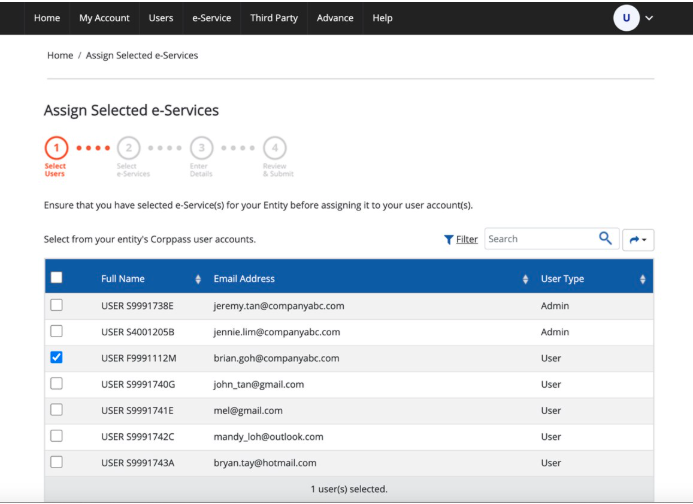
You are now in a four-step wizard — Select Users → Select e-Services → Enter Details → Review & Submit — so you can see how far along you are at every screen.
Step 4: To give access to BGP, select the "ApplyGov" e-Service under "Government Technology Agency of Singapore". Click "Next".
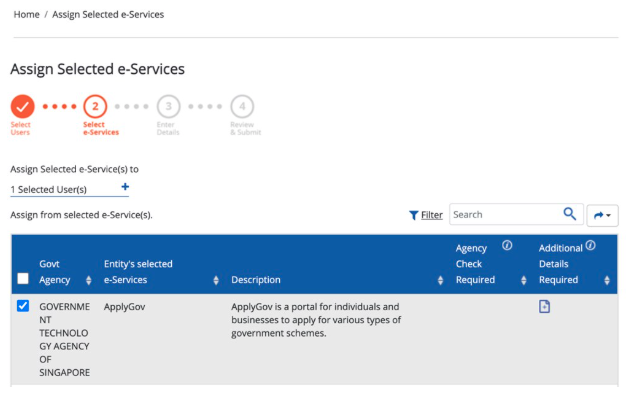
BGP does not appear under its own name in Corppass. It sits under the ApplyGov e-Service — described as "a portal for individuals and businesses to apply for various types of government schemes" — which is why this step catches most people out.
Step 5: Under Role, select BGP Acceptor (or BGP Preparer / BGP Viewer, depending on what the user needs), then indicate the authorisation effective and expiry dates. You can choose any period you like — set the effective date to today if the user needs access straight away. Click "Next" when you are done.
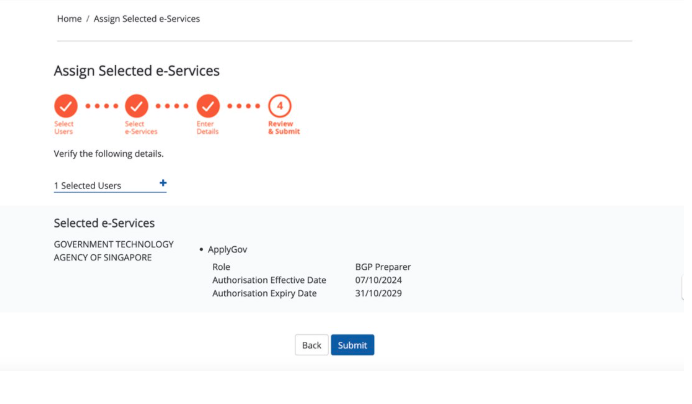
Step 6: Verify the request and click "Submit".
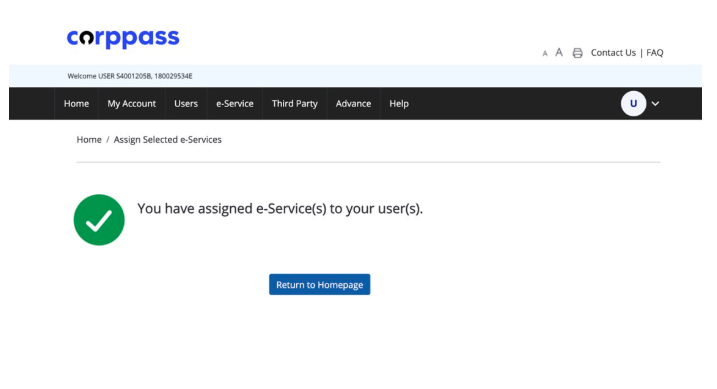
Step 7: Your assigned user(s) will now be able to access BGP via their Corppass login with the new role.
After the change
Ask the user to log out of BGP completely and log in again at https://www.businessgrants.gov.sg/. Corppass role changes are picked up at login, so the old role can stick around until they start a fresh session.
Once they are back in, the Submit button on the application should be available.
Tip: The Role field takes one value per e-Service, so assigning BGP Acceptor replaces the user's old BGP Preparer role rather than adding to it. If you want to confirm, go to "View Entity's e-Service Access" on the Corppass home screen and check the user's ApplyGov entry.
Common questions
Can I change my own role from Preparer to Acceptor?
No. Role assignment is an Admin function. If you are the only person in the company with Corppass access and you were set up as a user rather than an Admin, you will need whoever registered the Corppass account to either promote you to Admin or reassign your BGP role.
Do I lose my draft application if the role changes?
No. The draft belongs to the company's BGP account, not to your role. Once you log back in with Acceptor access, the same draft will still be there — you just gain the ability to submit it.
Can the same person be Preparer on one grant and Acceptor on another?
The BGP role is assigned at the e-Service level, not per grant. Whatever role you hold applies across all of the company's applications and claims in BGP.
How long does the change take?
It is immediate. There is no approval queue — as soon as the Admin submits the assignment, it is live. The only delay is the user needing to start a new BGP session.
What if the user does not appear in the list at Step 3?
They do not have a Corppass account under your UEN yet. The Admin will need to create the user account first, then come back and assign the ApplyGov e-Service to them.
What if ApplyGov does not appear at Step 4?
Your entity has not selected that e-Service yet. Corppass only lets you assign e-Services your company has already picked up — the Step 3 screen warns about this. Go back to the home screen, choose "Select Entity's e-Services", add ApplyGov under Government Technology Agency of Singapore, then start this guide again from Step 2.
Next steps
With Acceptor access in place, you are ready to put the application through:
- Guide to apply PSG Grant on Business Grant Portal
- Guide to submit PSG Claim on Business Grant Portal
Exabloom is a PSG pre-approved solution, so if you are applying the grant towards Exabloom and get stuck anywhere in Corppass or BGP, message us and we will walk you through it.