How Coexistence works
Normally, moving a WhatsApp number onto Meta’s business platform means the WhatsApp Business app on your phone stops working for that number. Coexistence is Meta’s newer mode that skips that trade-off: the number stays live in the app on your phone and connects to Exabloom at the same time.
Three rules explain almost everything it does:
- Every customer message lands in both places. Your phone gets it as usual, and the same message appears in Exabloom’s Inbox for your team.
- Replies from either side join one thread. What you type on the phone shows up in the Inbox, marked with a small phone icon. What your team (or a workflow) sends from Exabloom shows up on the phone. The customer just sees you.
- The phone keeps the link alive. Open the app at least once every 14 days, or Meta may drop the connection.
What changes and what doesn’t
The short answer: your phone, number and chats carry on as before, and Exabloom joins alongside. A few things do change, and a few app features are switched off by Meta. Here is all of it in one place.
| Status | Feature | After you connect |
|---|---|---|
| Your number and phone | ||
| Unchanged | Your WhatsApp number | Stays the same. Customers see no difference. |
| Unchanged | The WhatsApp Business app on your phone | Keeps working. Chat and reply from it as you do today. |
| Unchanged | One-to-one chats and their history on the phone | Stay exactly where they are. |
| Unchanged | Messages you send from the phone | Still free. Exabloom never bills for them. |
| Unchanged | Group chats, voice and video calls, Status updates | Stay in the app, on the phone only. They never reach Exabloom, so your team can’t see or use them there. |
| Unchanged | Catalog, business profile, greeting and away messages | Still edited in the app, not in Exabloom. |
| What is different now | ||
| Changed | Where messages arrive | Every customer message lands on the phone and in the Exabloom Inbox. |
| Changed | Replies from the phone | Now appear in the Inbox thread, marked read, with a phone icon. |
| Changed | Replies from Exabloom | Also show on the phone. Sent by your team or a workflow, they follow Meta’s pricing. |
| Changed | Messaging after 24 hours | From Exabloom, only an approved template can restart a conversation. The customer’s next message reopens the window. |
| Changed | Your chat history | About the last six months of one-to-one chats are copied into Exabloom once, at connection. Imported history triggers no workflows. |
| Changed | Contact names | Come from each customer’s own WhatsApp profile, not your phone’s address book. |
| Changed | Linked computers (WhatsApp Web, desktop) | Unlinked once when you connect. Scan the QR code again to relink. |
| Changed | Keeping the link alive | Open the app at least every 14 days. Unused linked computers are dropped after about 30. |
| Changed | Disconnecting | Starts from the phone. The same number may wait up to 24 hours to reconnect. |
| What you give up | ||
| Lost | Disappearing messages, view-once messages, live location | Meta switches them off in the app. |
| Lost | Broadcast lists | Become read-only in the app. |
| Lost | Meta Verified badge | Removed on connection. Re-verify through your Meta Business Profile. |
| Lost | WhatsApp for Windows and WearOS watches | Not supported. Anything sent from them never reaches Exabloom. |
| Lost | Editing the profile photo or display name from Exabloom | Only the API connection allows that. |
| Lost | Moving credit balances to an API account | Not possible later. Plan before you add credit. |
The reasons and the how-tos are in the sections below. The rows about Meta’s rules (the switched-off features, the 14-day check-in, the 24-hour window) are WhatsApp’s, not Exabloom’s, and apply to every provider.
Before you start
Run down this list first. It prevents almost every failed connection.
- The WhatsApp Business app, not regular WhatsApp. The number must be registered in the business app on your phone. The everyday WhatsApp app can’t connect.
- The phone itself, in your hand. Half the steps happen on the phone that runs the number: approving Meta’s message and scanning a QR code off your computer screen. If someone else holds that phone, do this together.
- About 7 days of real use. Meta turns away brand-new or barely used numbers. The number should have been chatting with real customers in the app for a week or more.
- A Facebook login with full access to your business portfolio. You sign in with it during the steps. The portfolio does not need to be verified to connect. If you don’t have one yet, start with Create your Meta Business Portfolio, and give it the same name as the business name in your WhatsApp Business app.
- The number isn’t tied to another provider. If it was on the WhatsApp API before, with us or anyone else, that has to be released first (see Fix connection problems).
- You’re not in Nigeria or South Africa. Meta hasn’t switched Coexistence on there.
Also know what changes on the phone. Meta switches off a handful of app features the moment Coexistence starts. That is WhatsApp’s rule, not Exabloom’s:
- Disappearing messages
- View-once messages
- Live location sharing
- Broadcast lists (become read-only)
- Meta Verified badge (removed)
- Linked devices (unlinked once, scan again to relink)
- Group chats
- Voice and video calls
- Status updates
- Catalog
- Editing your business profile
Phone-only: none of these reach Exabloom.
Connect, step by step
It takes about five minutes and moves between two screens: your computer, where you start in Exabloom and walk Meta’s popup, and your phone, where the WhatsApp Business app approves the link. Keep the phone next to you from the start, and don’t close any window until step 8.
Open Settings
In Exabloom, click Settings at the bottom of the left sidebar.
Open Social Channels
In the Settings column that opens, click Social Channels under Communication.
Click Connect on the Whatsapp Business card
Find the Whatsapp Business card (it carries the green Coexistence badge) and click Connect.
Connect your communication platforms to start messaging leads directly from the dashboard.
Read the dialog, then Connect With Facebook
A dialog lists what changes. Read it, then click Connect With Facebook.
Connect your communication platforms to start messaging leads directly from the dashboard.
Link your WhatsApp Business App to Exabloom to unlock API capabilities while still using the mobile app.
- Your Meta Verified badge (blue checkmark) will be removed upon connection. Re-verification can be done through your Meta Business Profile.
- Not available in Nigeria and South Africa due to WhatsApp Business App restrictions. Please use the WhatsApp Business Platform (API) option instead.
- Voice and video calls are not supported in Exabloom for WhatsApp Business App connections. Make calls directly through the WhatsApp Business App or use the WhatsApp Business Platform (API).
- Contact lists and message history are not currently synced to Exabloom. You can still view them in your WhatsApp Business App.Out of date
- Credit balances cannot be migrated from coexistence accounts. To transfer or update your credit line, disconnect this account first, then reconnect using the WhatsApp Business API.
- Access your WhatsApp Business App at least once every 14 days to maintain the connection with Exabloom.
- Meta does not support WhatsApp for Windows and WearOS in coexistence mode. Messages sent from these platforms will not appear in your Exabloom inbox.
Walk Meta’s popup
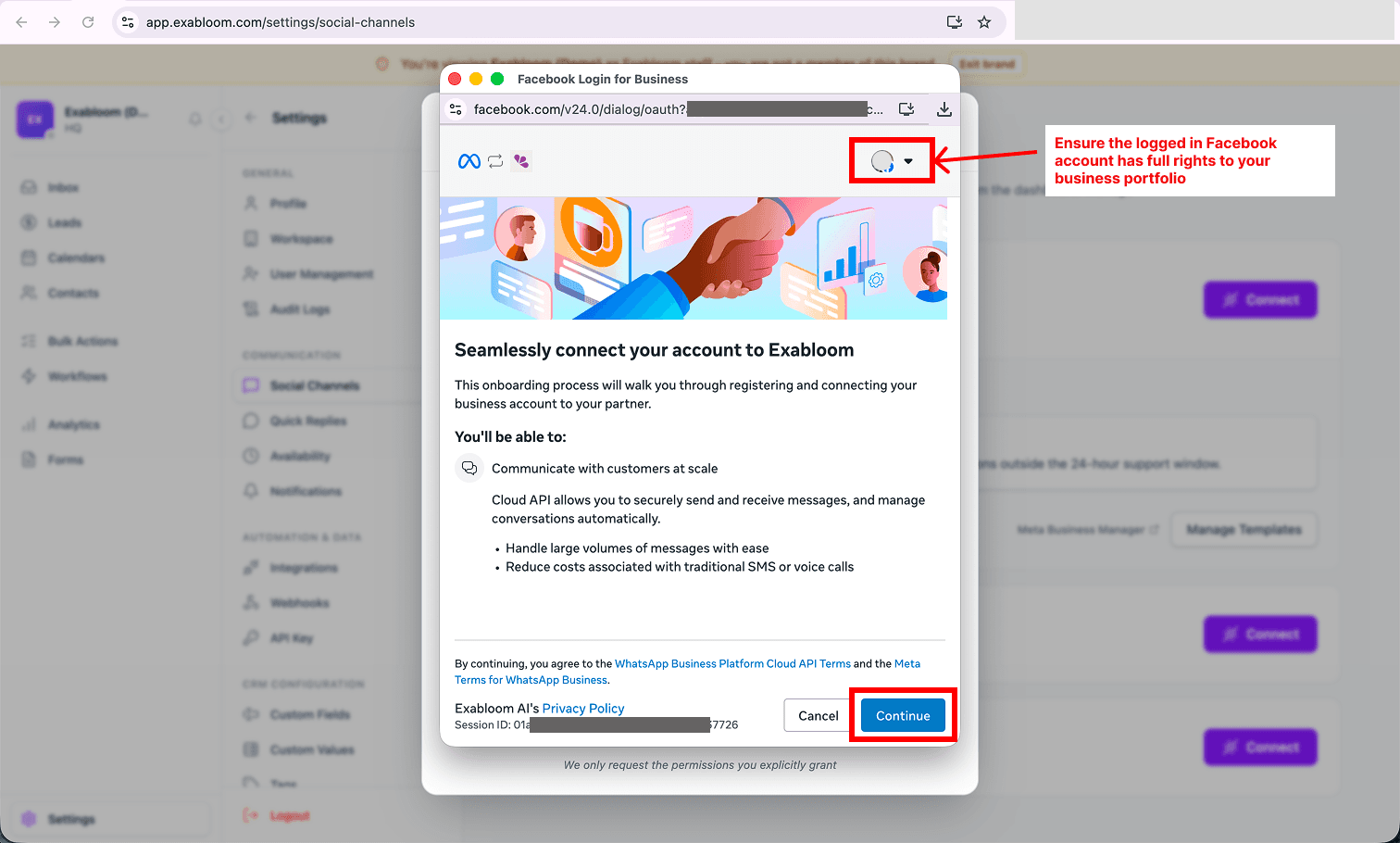
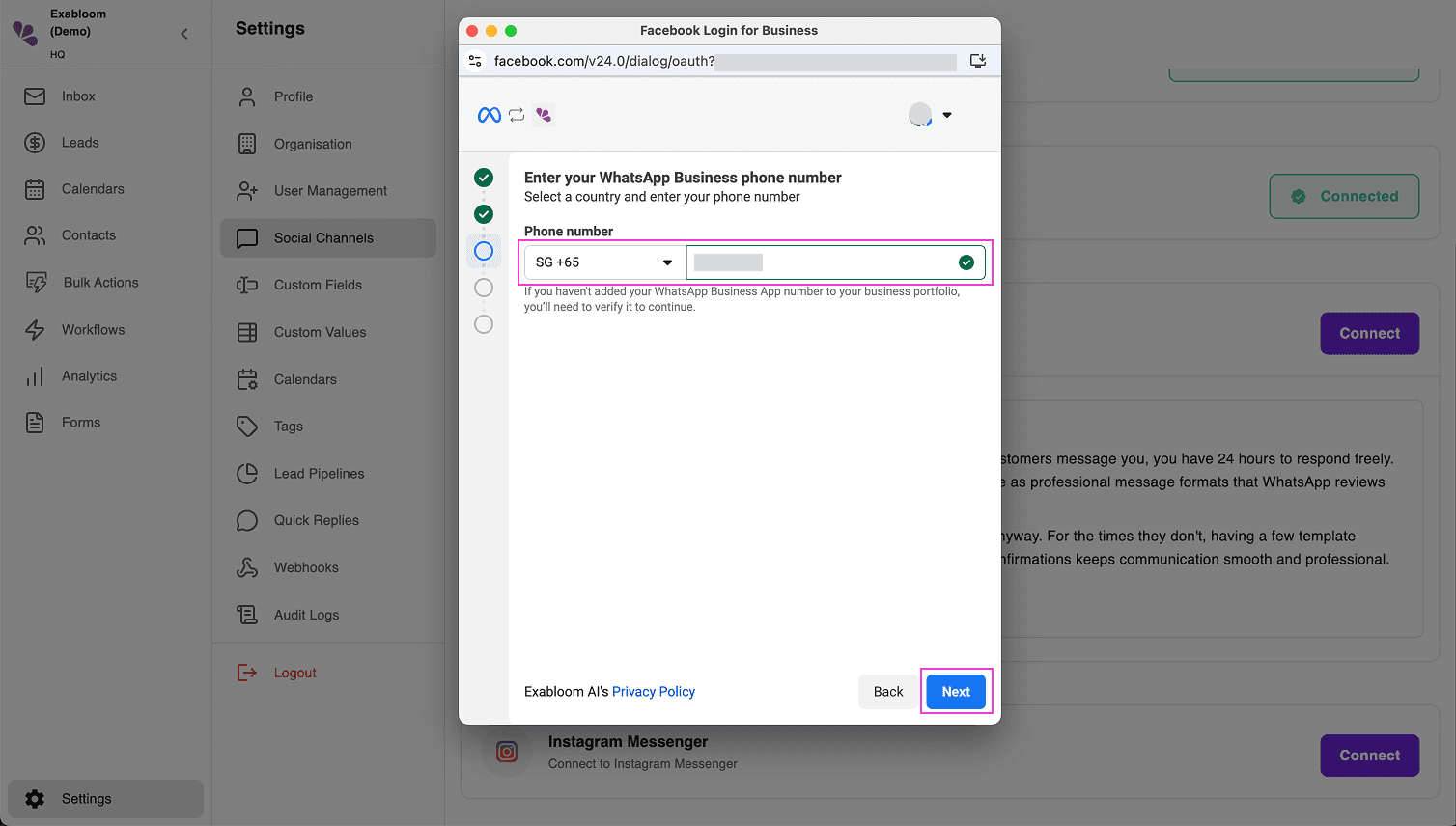
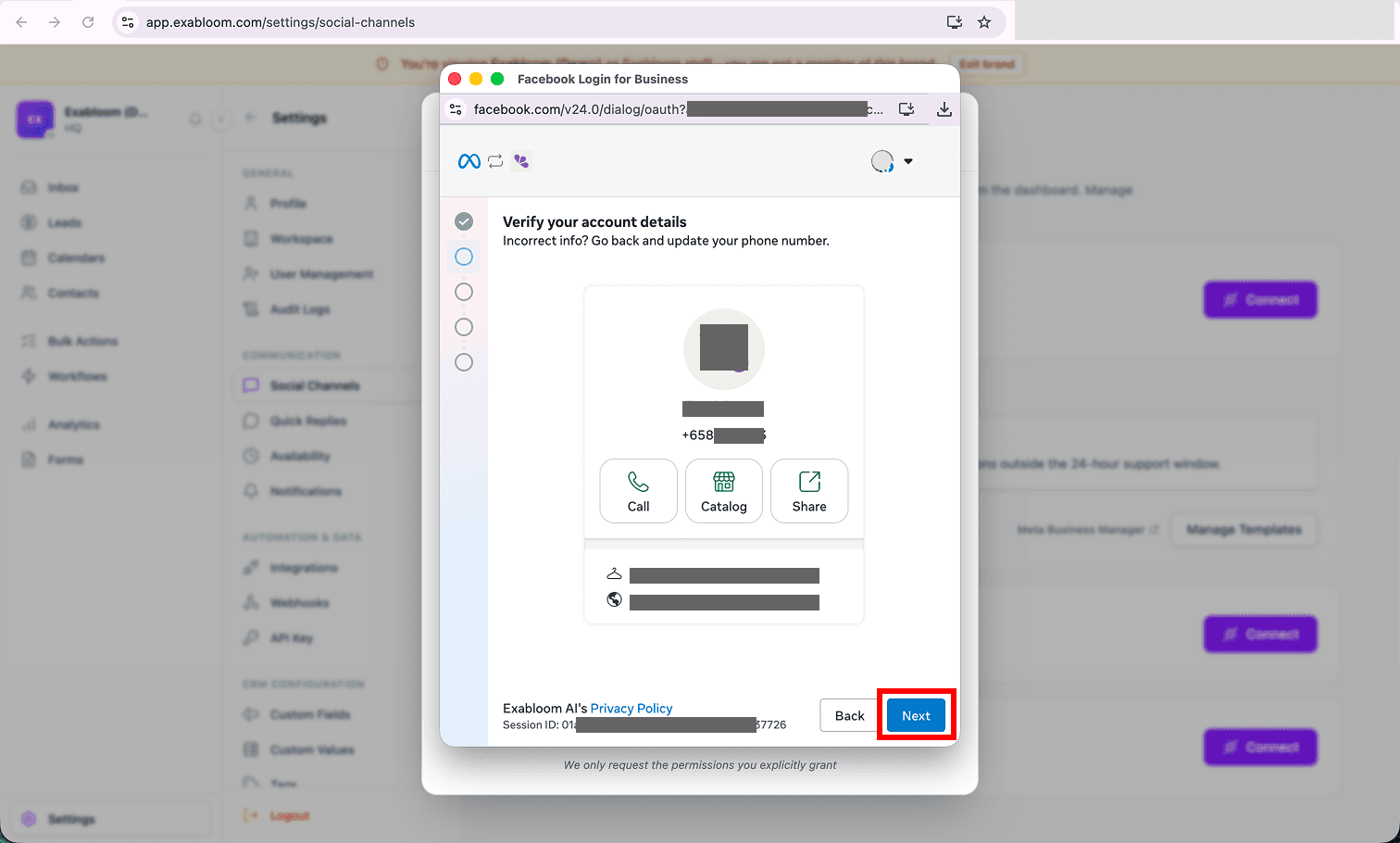
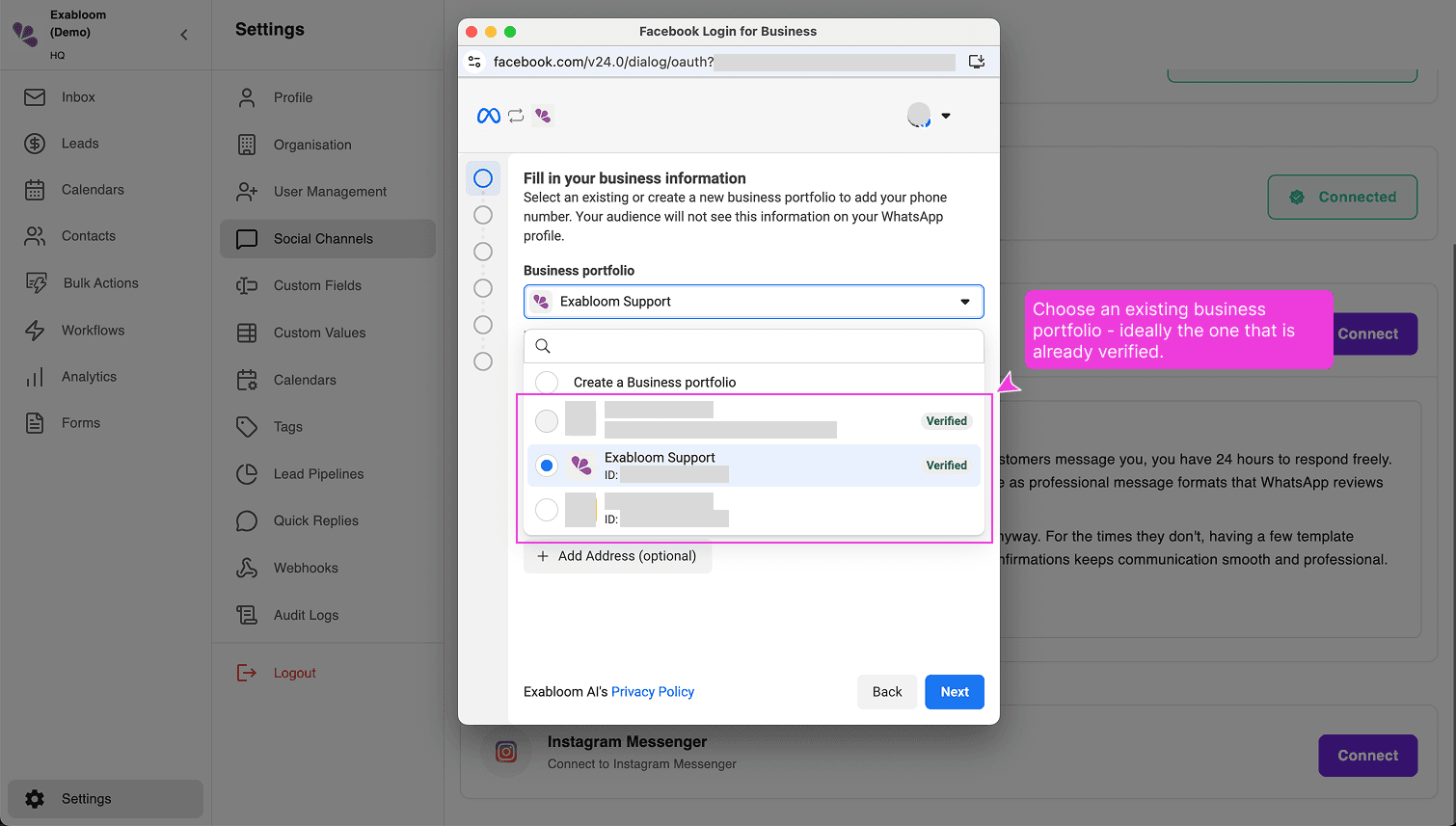
A Facebook window opens. Follow its five screens. The red boxes mark what to click.
This is Meta’s official signup, not Exabloom’s, and it names the app Exabloom AI. If Facebook asks you to log in, use the account with full access to your portfolio.
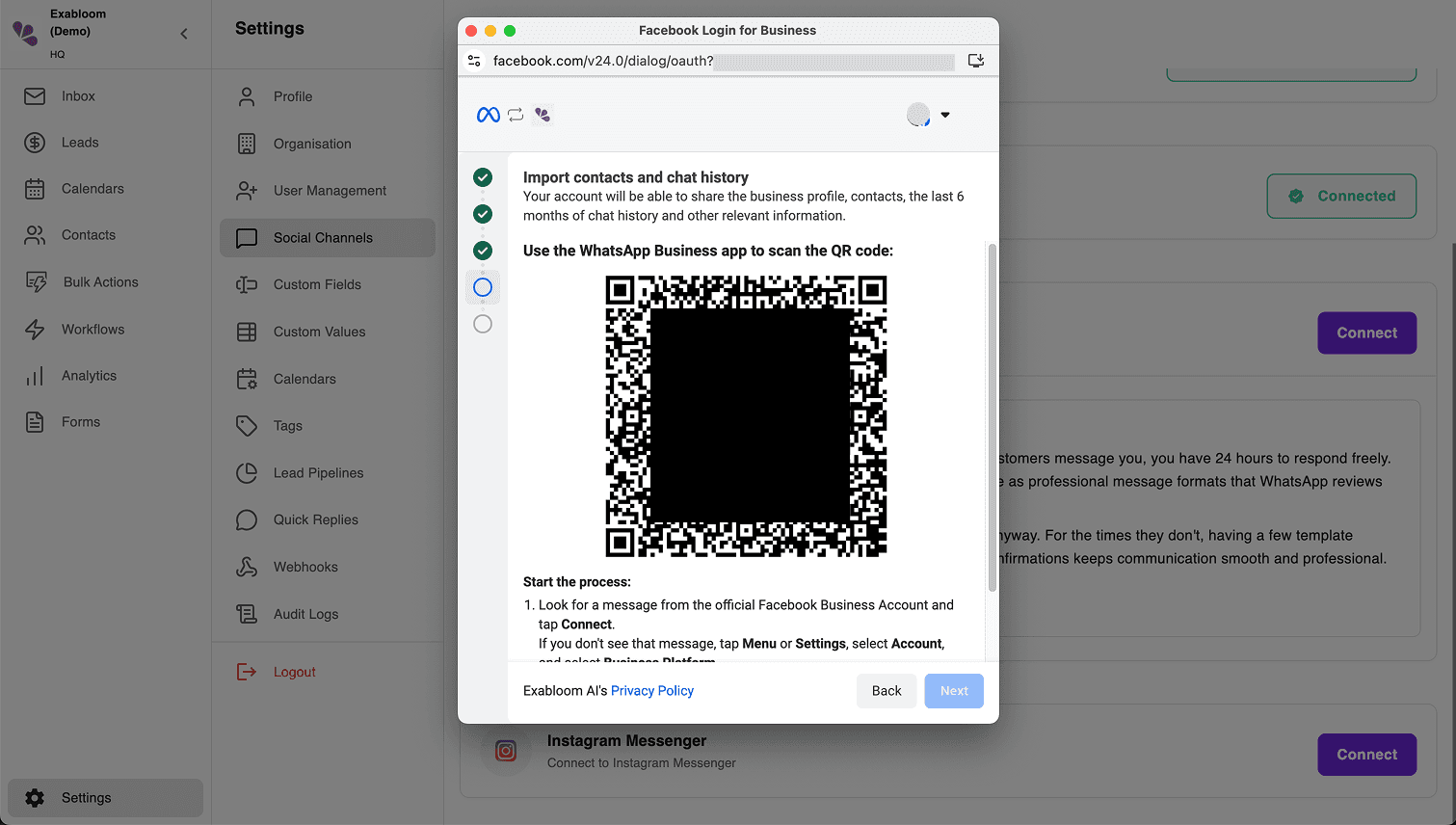
Approve on your phone
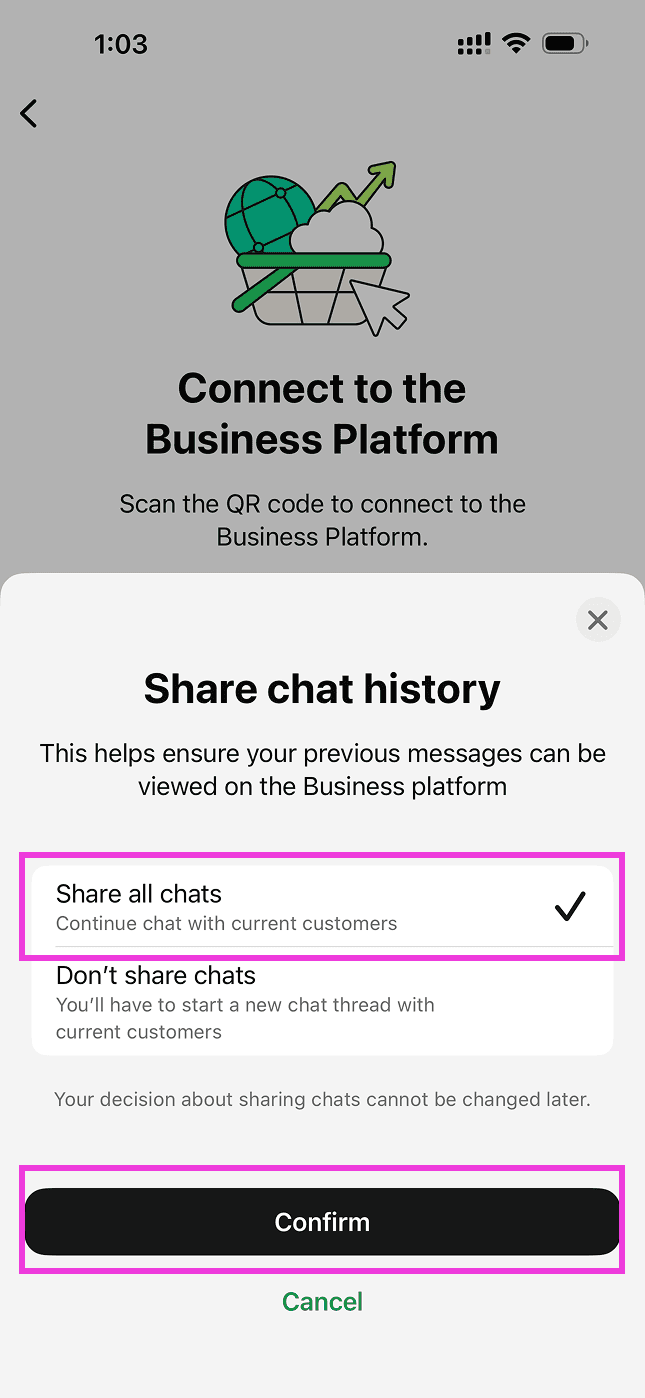
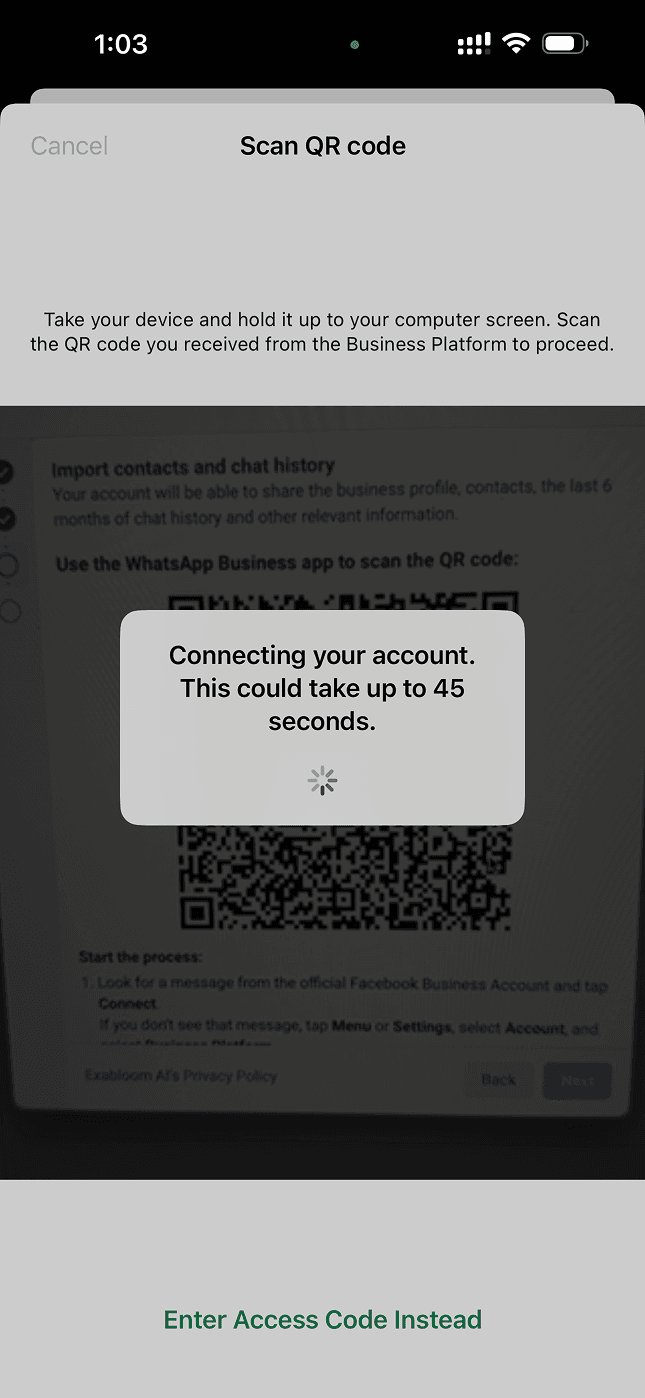
With the QR code on your computer screen, open the WhatsApp Business app on the phone that runs the number.
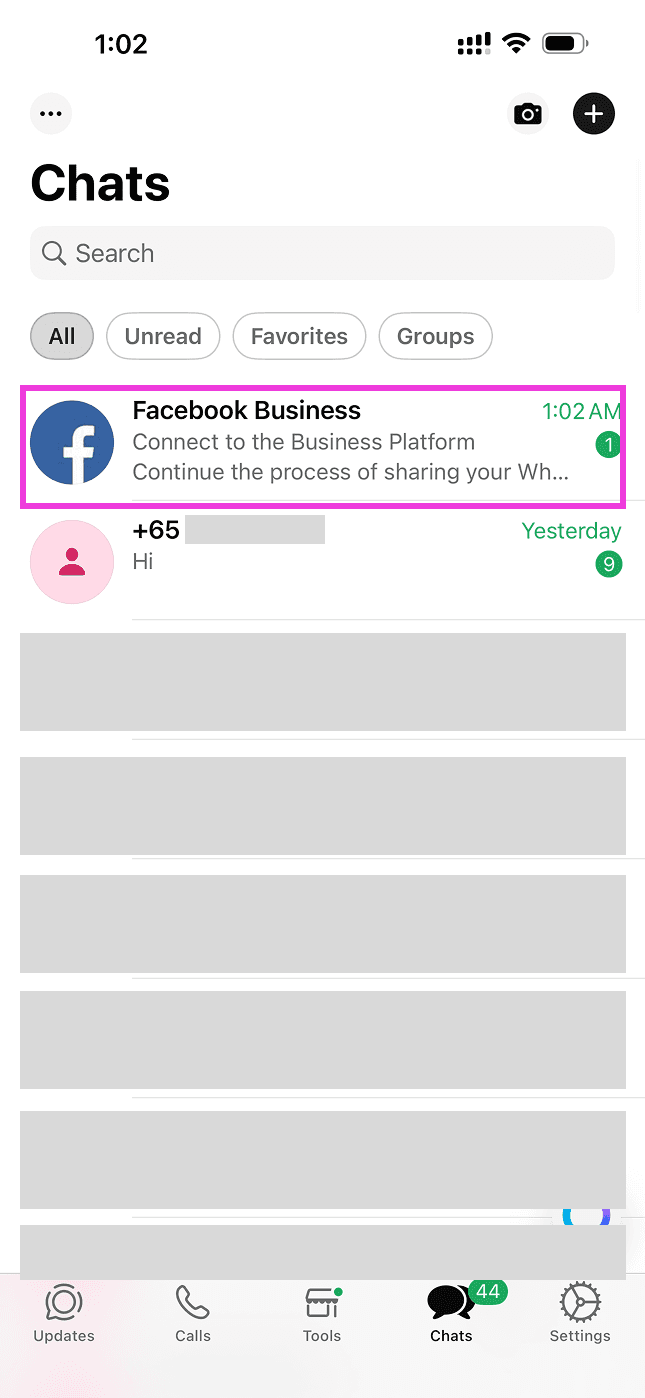
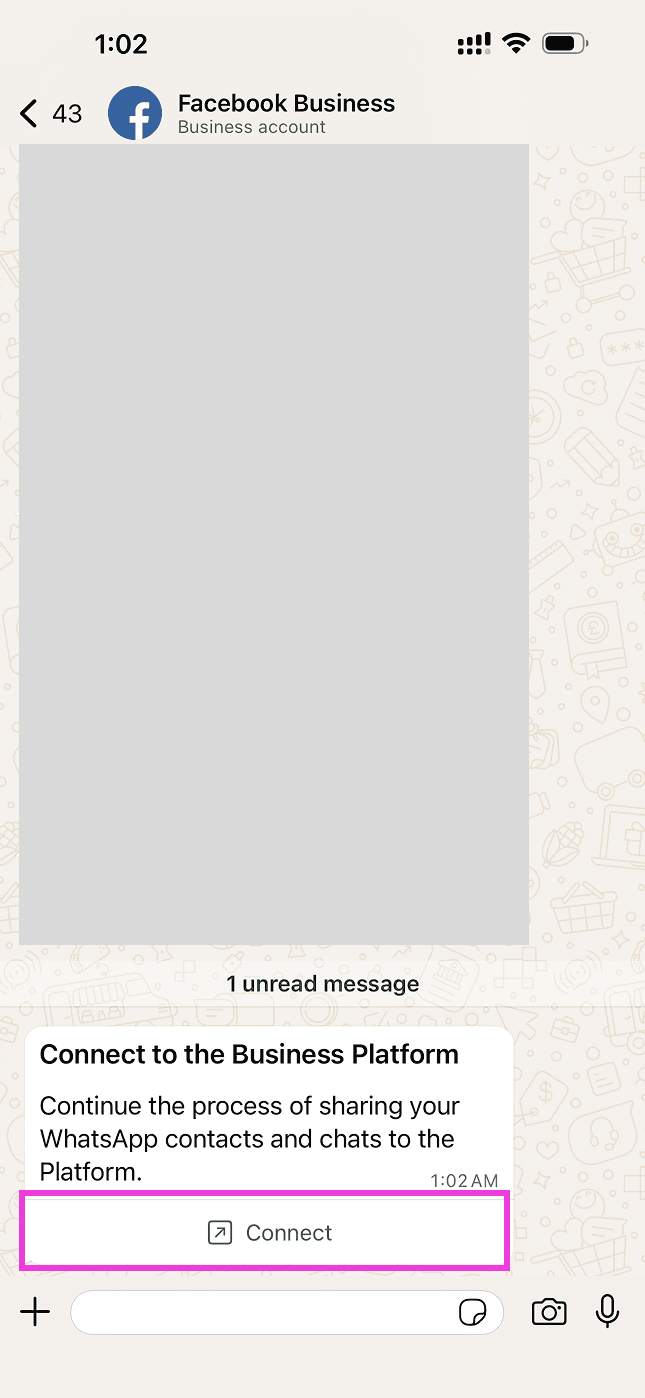
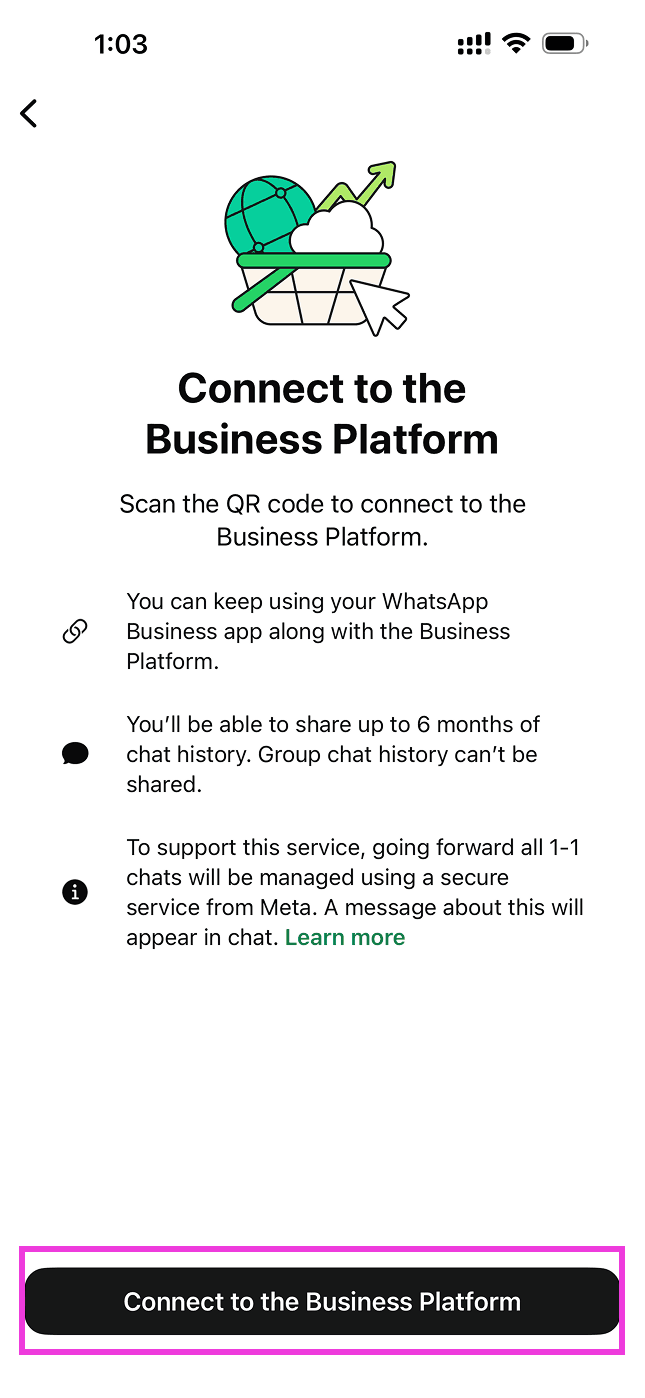
Finish on your computer
Go back to your computer. Meta’s popup has moved on by itself; walk its last four screens.
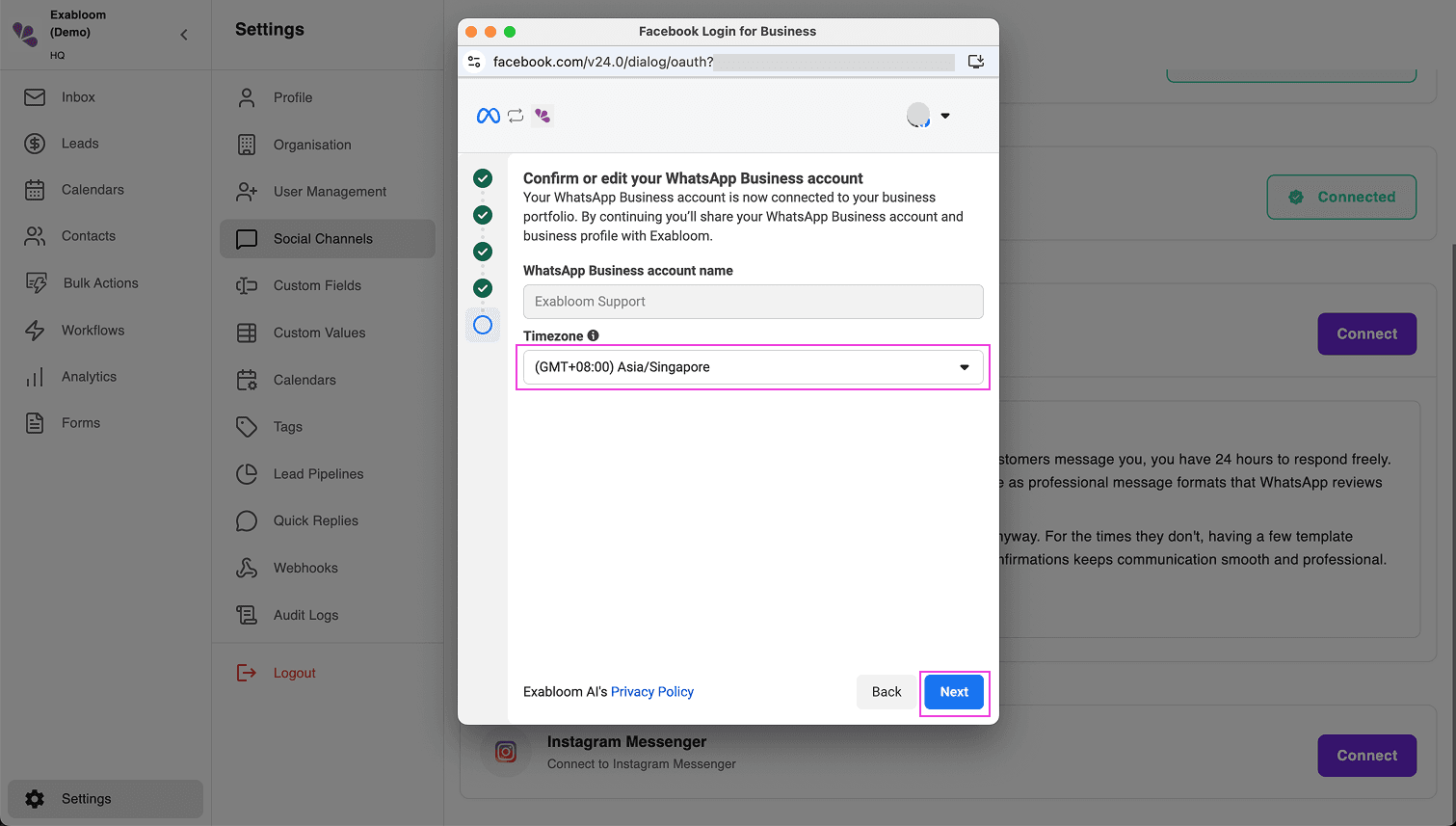
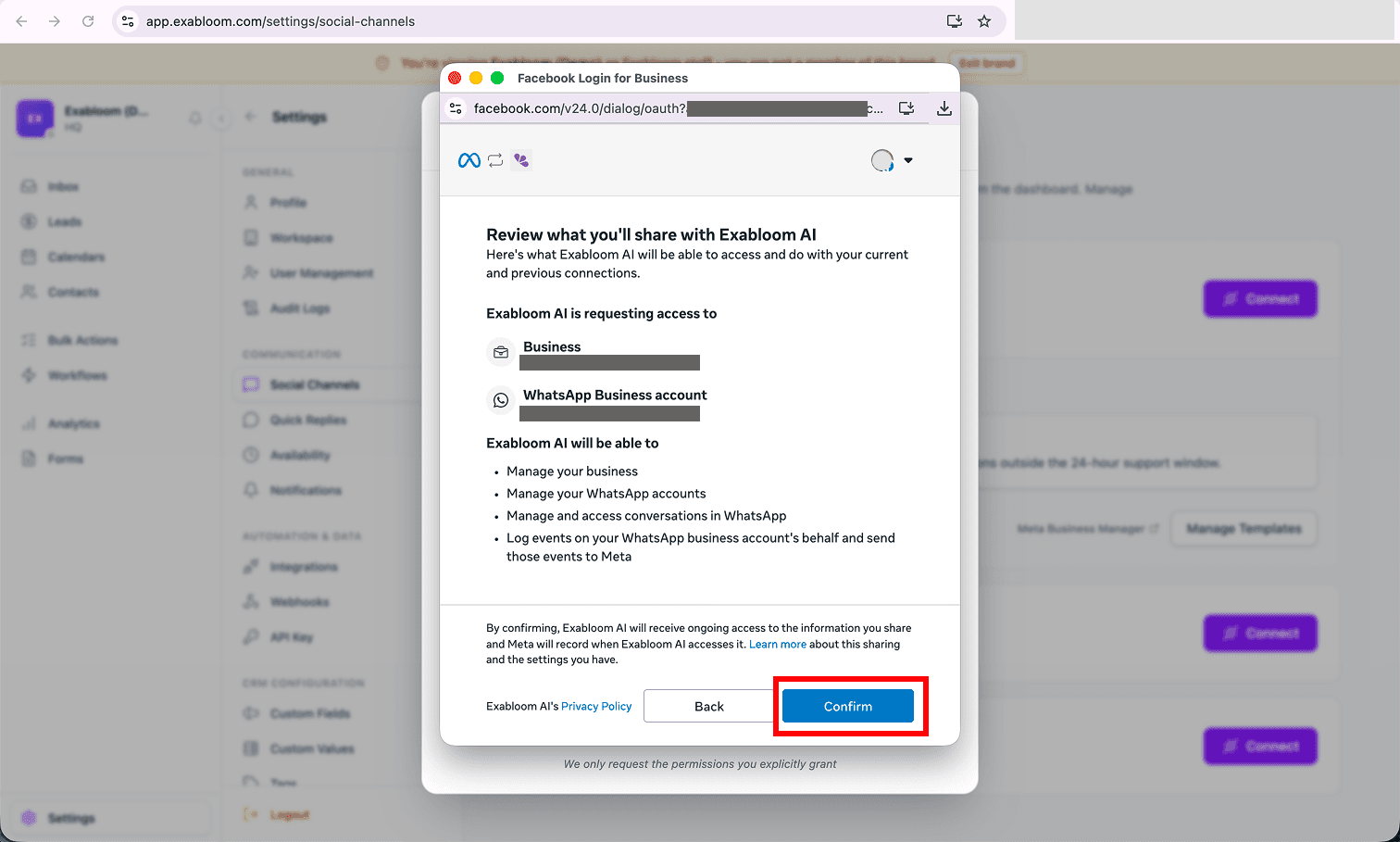
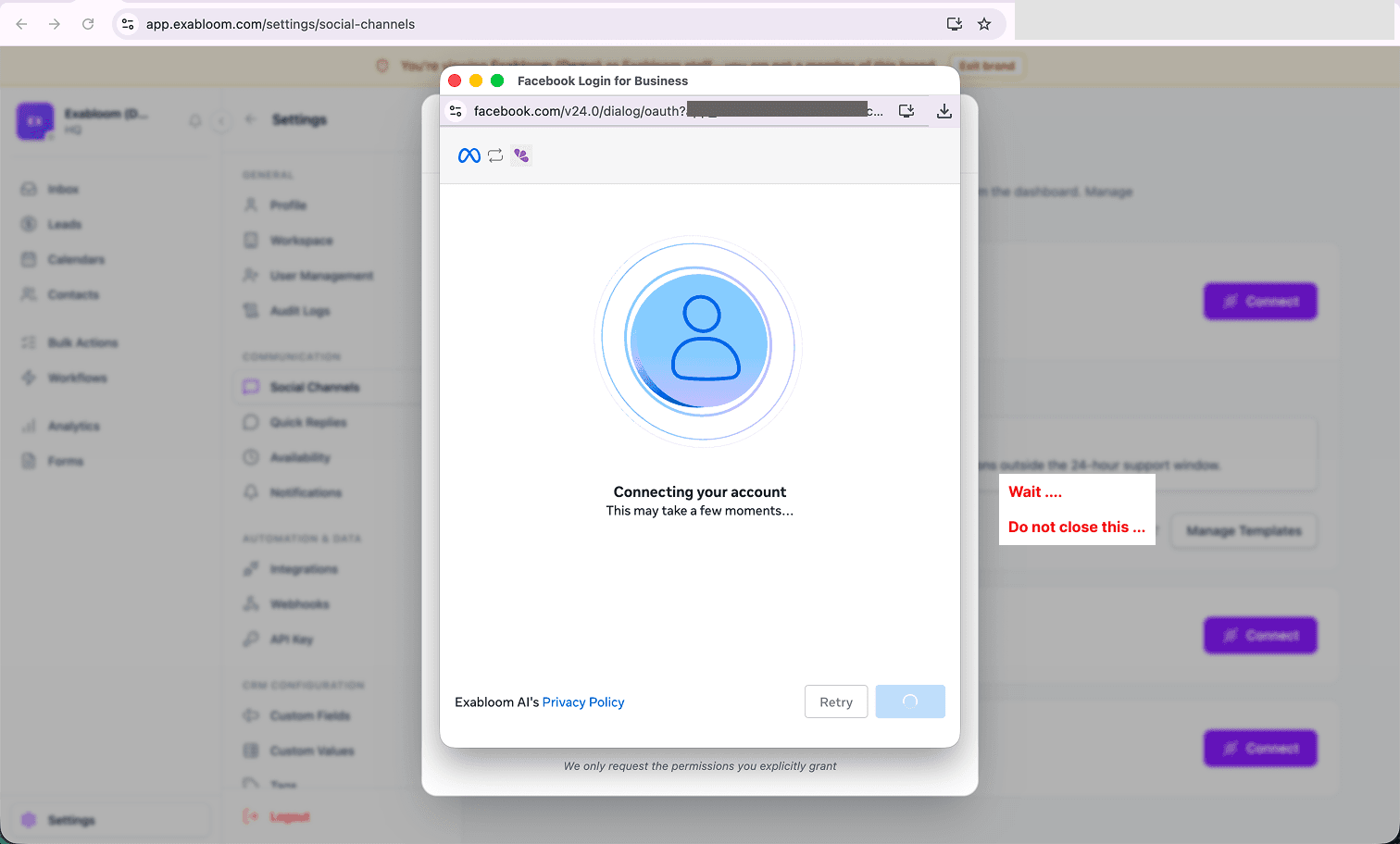
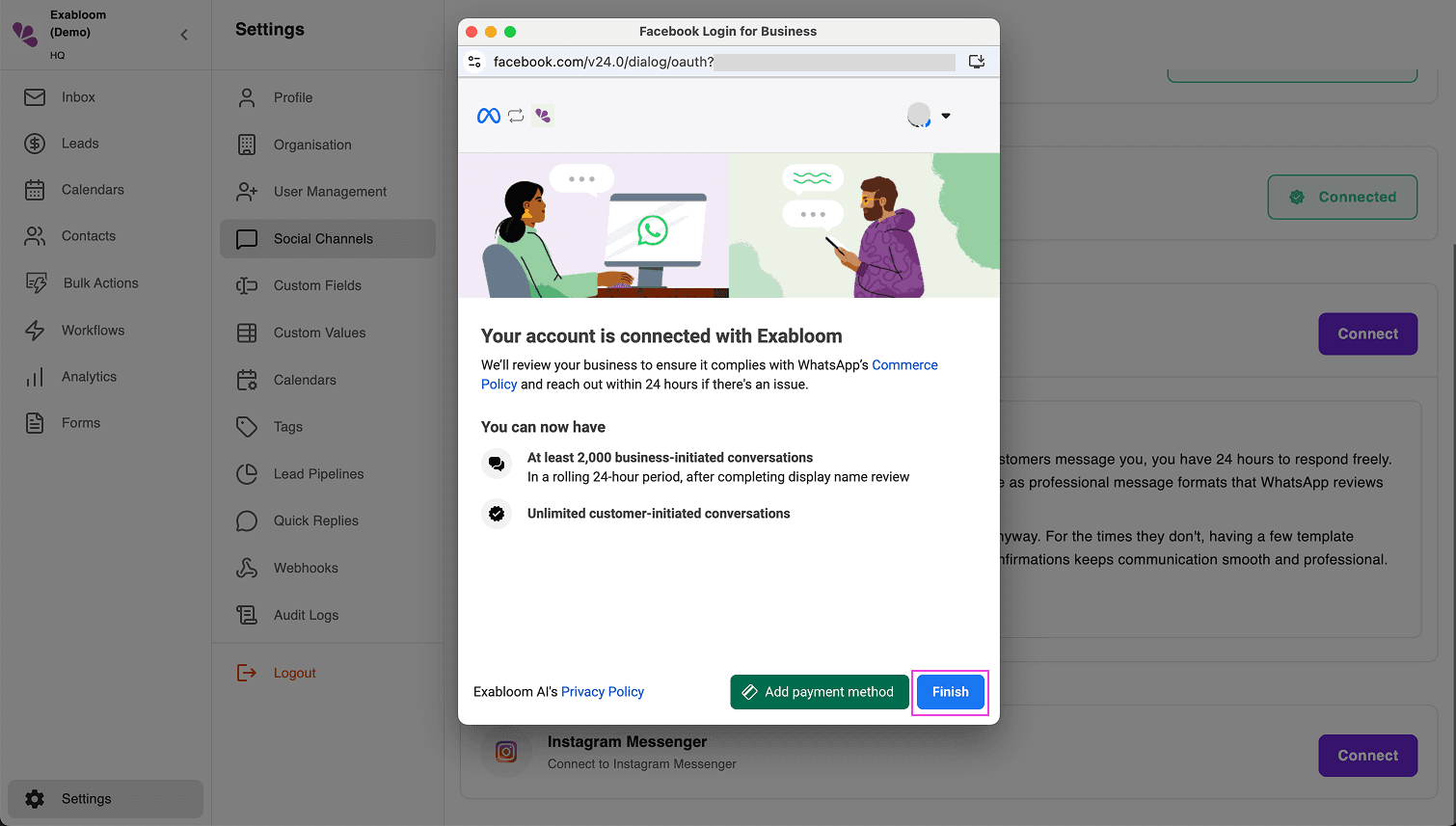
The popup closes and Exabloom takes over with Connecting to WhatsApp. Leave it alone: it closes by itself when the connection is saved, and a short Successfully updated instance message pops up. If you see Failed to update instance instead, nothing was saved: start again from step 3.
Connect your communication platforms to start messaging leads directly from the dashboard.
Check it worked
Look at the Whatsapp Business card in Exabloom, then at the phone.
Connect your communication platforms to start messaging leads directly from the dashboard.
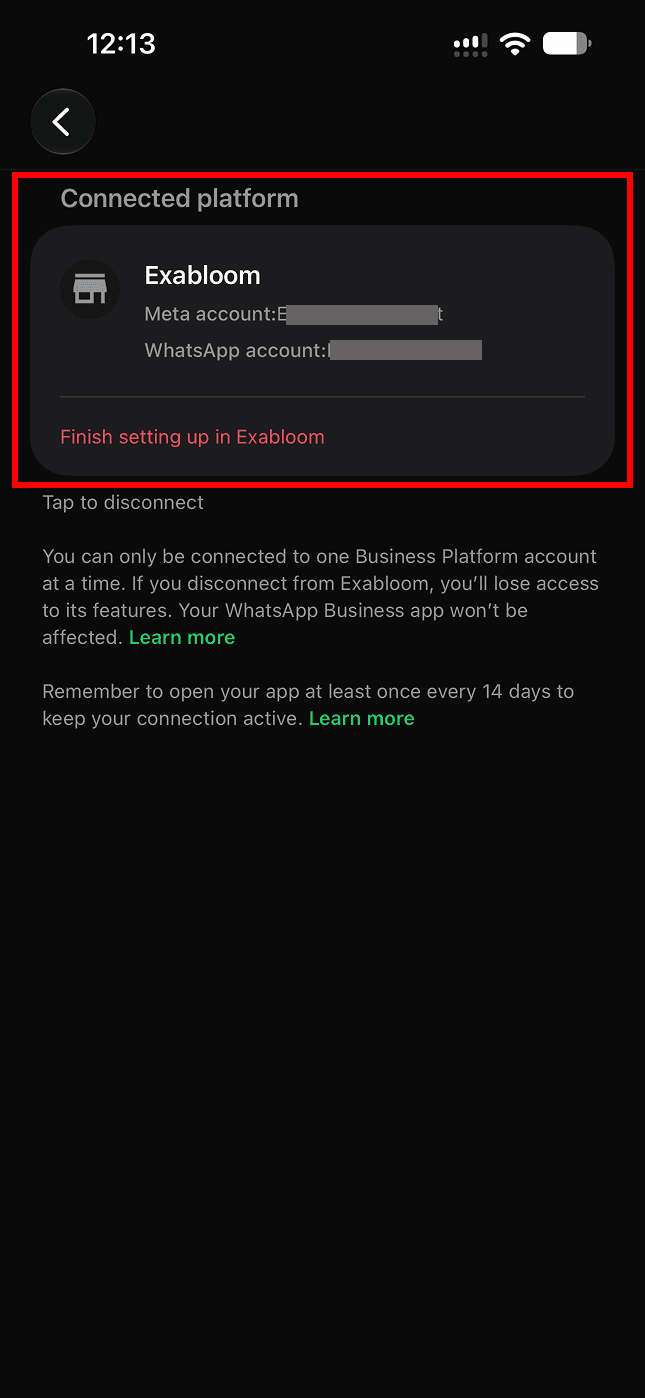
On the phone, one last sheet confirms it:
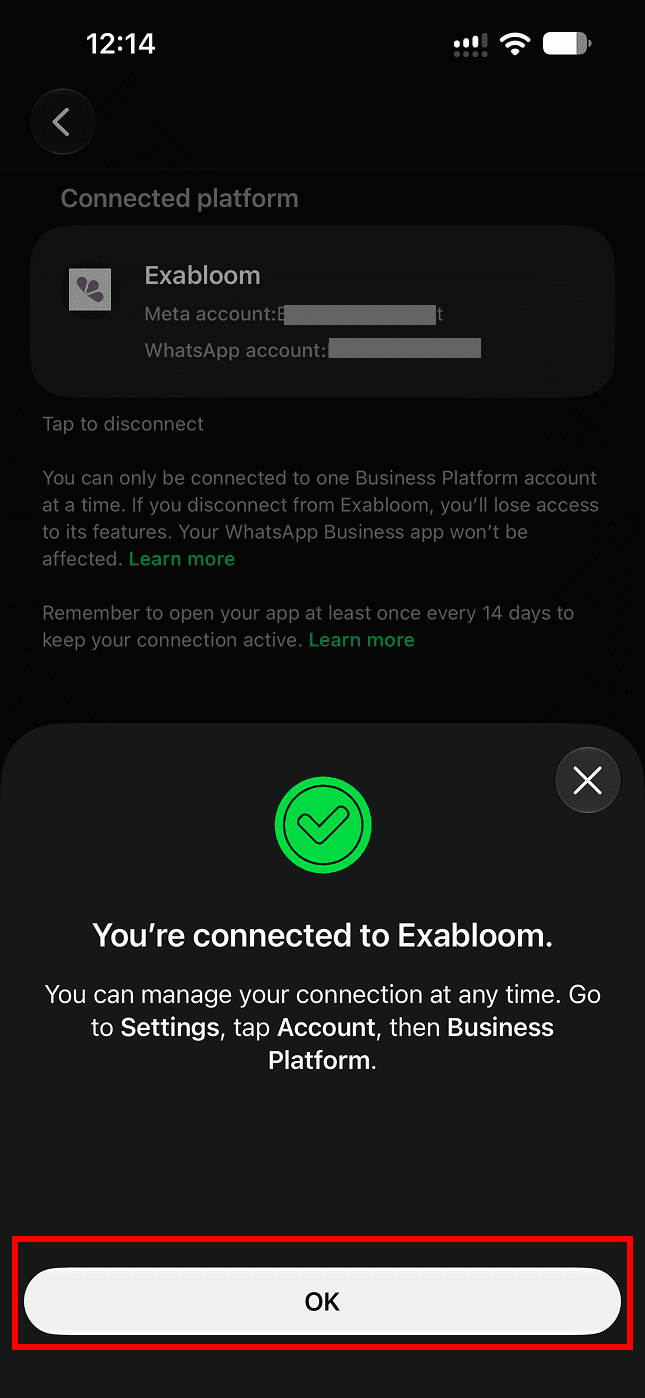
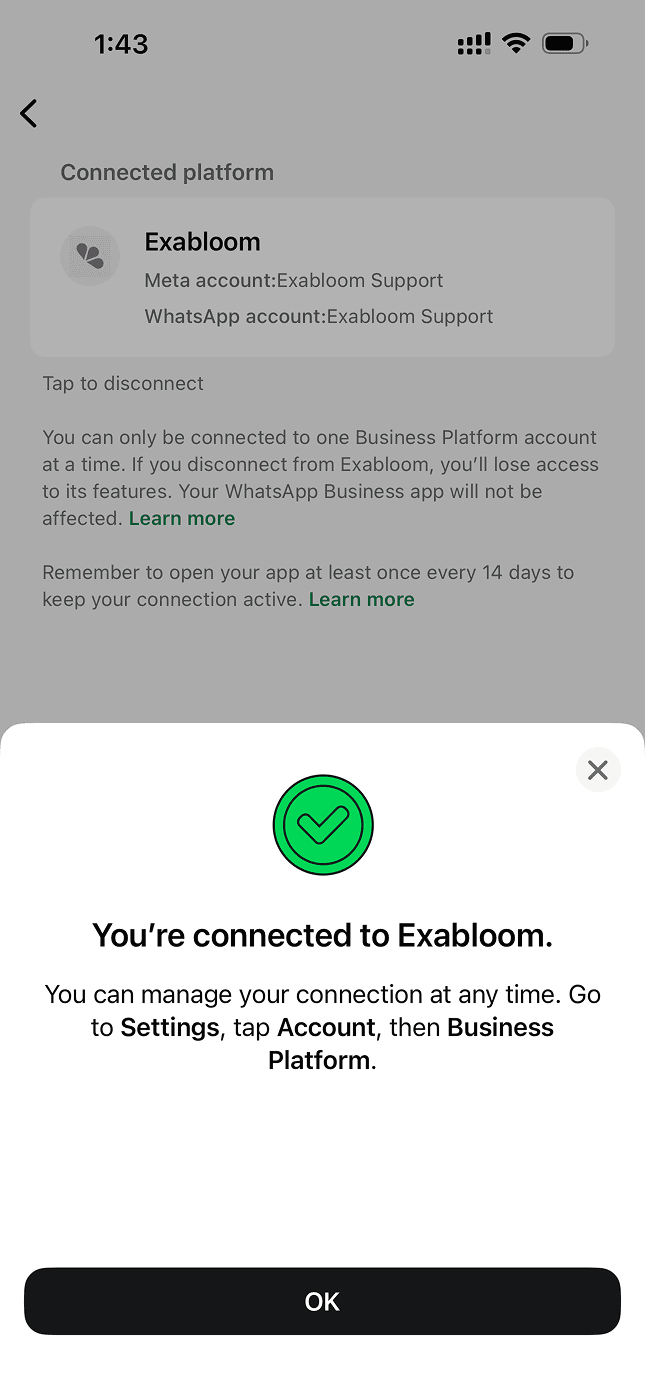
Last, test the loop: ask a colleague to message your business number from their own WhatsApp. It should appear in the Inbox within seconds. Reply from Exabloom and check it lands on their phone.
What you’ll see after connecting
Your chat history comes in. Because you chose “Share all chats”, Meta sends over your recent one-to-one conversations (up to about the last six months) in the background, both sides of each thread. A busy number can take a while; let it run.
- Each person becomes a contact in Exabloom, named with the name they set on their own WhatsApp profile. Names you saved in your phone’s address book don’t come across, so some contacts arrive as a bare phone number. Rename them as you go.
- Old messages you had already read arrive as read, so your Inbox isn’t flooded with “unread” chats from last month.
- Imported history is just history: it doesn’t start workflows, send auto-replies or trigger follow-ups. Only messages that arrive after the connection is live do that.
From now on, phone replies show up in the Inbox. Anything you send from the app appears in the thread as your reply, already marked read, with a small phone icon and the line WhatsApp app / linked device above it. Replies sent from Exabloom carry the teammate’s name instead. A chat you answered from your phone doesn’t sit there looking unanswered for everyone else.
Everyday use
Day to day, reply from whichever is handier: the app when you’re out, Exabloom when you’re at a desk or want the team to pick it up. Two things are worth understanding.
The 24-hour window
WhatsApp’s one big rule applies to every business connection, Coexistence included. When a customer messages you, a 24-hour reply window opens. Inside it, Exabloom can send anything. Once it closes, Exabloom can only restart the conversation with a template message: a pre-approved message Meta has checked. Every new message from the customer restarts the 24 hours; your own replies don’t.
Messages from the app on your phone stay free, as they always were. Messages from Exabloom follow Meta’s pricing:
Building and submitting templates has its own guide: WhatsApp message templates. The Manage Templates button on the Whatsapp Business card takes you straight there.
Keep the link alive
Coexistence asks one thing of you for as long as it runs: the phone has to stay in use. Meta drops the link if it thinks the app has been abandoned.
- Open the WhatsApp Business app on the main phone at least once every 14 days. A quick open is enough. The app itself reminds you of this under Business Platforms.
- Linked computers (WhatsApp Web or desktop) that sit unused for about 30 days get unlinked by Meta. Scan the QR code again to relink them.
When Meta tells Exabloom the link is gone, three things happen at once: a red 🚨 Whatsapp disconnected bar appears across the top of Exabloom for everyone, the card flips back to Connect with a “Disconnected … · outside Exabloom” line, and the people who have the channel alert switched on get an email.
Connect your communication platforms to start messaging leads directly from the dashboard.
Reconnecting is self-service: run steps 3 to 8 again. While the link was down, nothing could be sent from Exabloom and your workflows couldn’t reply, so check the phone for anything that came in meanwhile.
Connected, replying, and keeping the phone active is the whole job for most businesses. Everything below is for when you need it.
Going further
Three things most people never need: how Coexistence differs from the API connection, reading a channel’s connection history, and disconnecting on purpose.
Coexistence or API
The Whatsapp Business card comes in two kinds, and the badge next to its name says which one your workspace has:
- Coexistence: you keep using the WhatsApp Business app, and Exabloom joins the same number. Its Settings dialog has one section, Connection Details, because the profile is still run from the app.
- API: the number moves entirely onto Meta’s platform and the phone app stops working for it. In return, Exabloom can set the profile photo, submit a new display name to Meta, and turn on template analytics. It connects with a 6-digit PIN instead of a QR code.
The kind is set when your workspace is set up, so you won’t see a choice when you click Connect. If the phone is part of how you work, Coexistence is the right fit. If the number is (or could become) a dedicated line nobody needs on a phone, the API gives you more control. To switch, message us.
Connection history
The small grey line under the card’s number (“Connected 2 days ago”, “Disconnected 3 hours ago · outside Exabloom”) is also a button. It opens the channel’s connection history: every connect and drop, when it happened, and whether it started in Exabloom or outside it.
Connect your communication platforms to start messaging leads directly from the dashboard.
Connect your communication platforms to start messaging leads directly from the dashboard.
- Connected23 Sep, 9:12 AMConnected in Exabloom by Priya
- Disconnected22 Sep, 6:40 PMOutside ExabloomExabloom was removed from this WhatsApp Business Account in Meta Business Manager
- Connected2 Aug, 10:03 AMConnected in Exabloom by Priya
Disconnect on purpose
The part that surprises people: a Coexistence connection can’t be ended from inside Exabloom. Meta only accepts a disconnect that starts on the phone. Exabloom’s Disconnect button exists, but it opens a dialog that sends you back to the app.
Connect your communication platforms to start messaging leads directly from the dashboard.
Connect your communication platforms to start messaging leads directly from the dashboard.
Connect your communication platforms to start messaging leads directly from the dashboard.
- Open your WhatsApp Business App on your phone
- Go to Settings, Account, then select Business Platforms
- If Exabloom is listed, tap on Exabloom and follow the prompts to disconnect it
- Note: After disconnecting, you might need to wait up to 24 hours before you can reconnect the same phone number to Exabloom.
Then, on the phone:
- 1In the WhatsApp Business app, open Settings → Account → Business Platforms.
- 2Tap the Exabloom card (the boxed one). The line under it says Tap to disconnect.
- 3Confirm on the prompts that follow.
Within a few minutes the card in Exabloom flips back to Connect, and the red disconnected bar and email from Keep the link alive appear too. That’s expected when you did it on purpose; dismiss the bar with its ✕. If Business Platforms is empty on the phone, the link is already gone.
Fix connection problems
Most failed connections stop inside Meta’s popup, before Exabloom is even involved: a permission error, a Next that won’t move, a number that isn’t eligible or is still held by another account. Each one has its own fix in Fix WhatsApp connection problems.
An amber “Review your Meta connection” pill on the card
The number is connected, but Meta is blocking messages you start. Hover over the pill: it lists each problem in plain words, with the place in Meta to fix it.
Payment method is not working141006
WhatsApp charges for messages you start (templates, broadcasts, reminders). Until a working payment method is on the account, every one of those fails.
Fix in Meta Business Suite › Billing & payments
Once these are done, please reconnect this channel.
Checked with WhatsApp 2 hours ago.
The usual causes, in the order to fix them: an incomplete business profile (Meta Business Suite › Settings › Business info), an unverified business (Settings › Security Centre), and a missing or failing payment method (Billing & payments).
Good to know & pitfalls
- A phone reply counts as answered. It lands in the thread as your reply, already read, so the team won’t double-handle it.
- Only the customer reopens the window. Your replies, from either place, never extend the 24 hours. Past that, it’s a template or nothing.
- Groups, calls and Status stay on the phone. Coexistence carries one-to-one messages only.
- Contact names come from the customer’s own profile, not your address book. Nameless contacts after the history import are normal.
- The profile is still run from the app. Photo, display name, catalog, and greeting and away messages are edited in the WhatsApp Business app, not in Exabloom.
- Failed sends are visible. Payment problems and out-of-window mistakes land in Failed messages with the reason attached.
- The Meta Verified badge doesn’t come back by itself. It’s removed when you connect; re-verify through your Meta Business Profile if you had one.
- Disconnecting starts on the phone, and the same number may then wait up to 24 hours to reconnect.
Need a hand?
Our Singapore-based team is one message away - happy to help you get set up.